

Connect
Add this remote MCP server to any compatible client:Manual JSON configuration
Manual JSON configuration
MCP clients that use JSON configuration generally accept this shape:
How spaces work
A space keeps a team’s documents, memories, and profile context focused, so AI retrieves the right knowledge without mixing unrelated work. Use separate spaces for an engineering launch, research project, finance workflow, legal matter, medical knowledge base, or any other shared initiative. Teammates collaborate within the spaces they are allowed to read or write. Name a space to use it for one request without changing your active space. Otherwise, Supermemory uses your active space or account default. Ask to switch spaces when you want future requests to use a different active space.Tools
Your assistant chooses these tools automatically. Use this table when you need the exact inputs and results.Search
search_memory accepts a natural-language query and returns semantically relevant memories. By default, it also includes stable and recent profile context from the same space. Set includeProfile to false when only matching memories are needed.
Use the retrieval tools for different questions:
- Use
search_memoryto answer a question from remembered context. - Use
listDocumentsto discover stored sources, thengetDocumentto read one source in full. - Use
listMemoriesto inspect the extracted memory entries themselves, including their IDs and source document IDs.
listDocuments and listMemories default to 10 results per page and accept up to 50.
Save or forget
add_memory saves the supplied content by default. Set action to forget when a fact is outdated or should be removed. There is no separate forget tool.
If the content is already final, the assistant should use add_memory. If you want to review, edit, or choose a space before saving, it should open the guided-save widget instead.
Access control
whoAmI returns the current identity, role, access type, granted scope, and active space. listSpaces returns only spaces the authenticated account can access, with names, keys, document and memory counts, and recent activity.
Interactive widgets
Clients that support MCP Apps can open these Supermemory widgets directly inside the conversation.Select a space
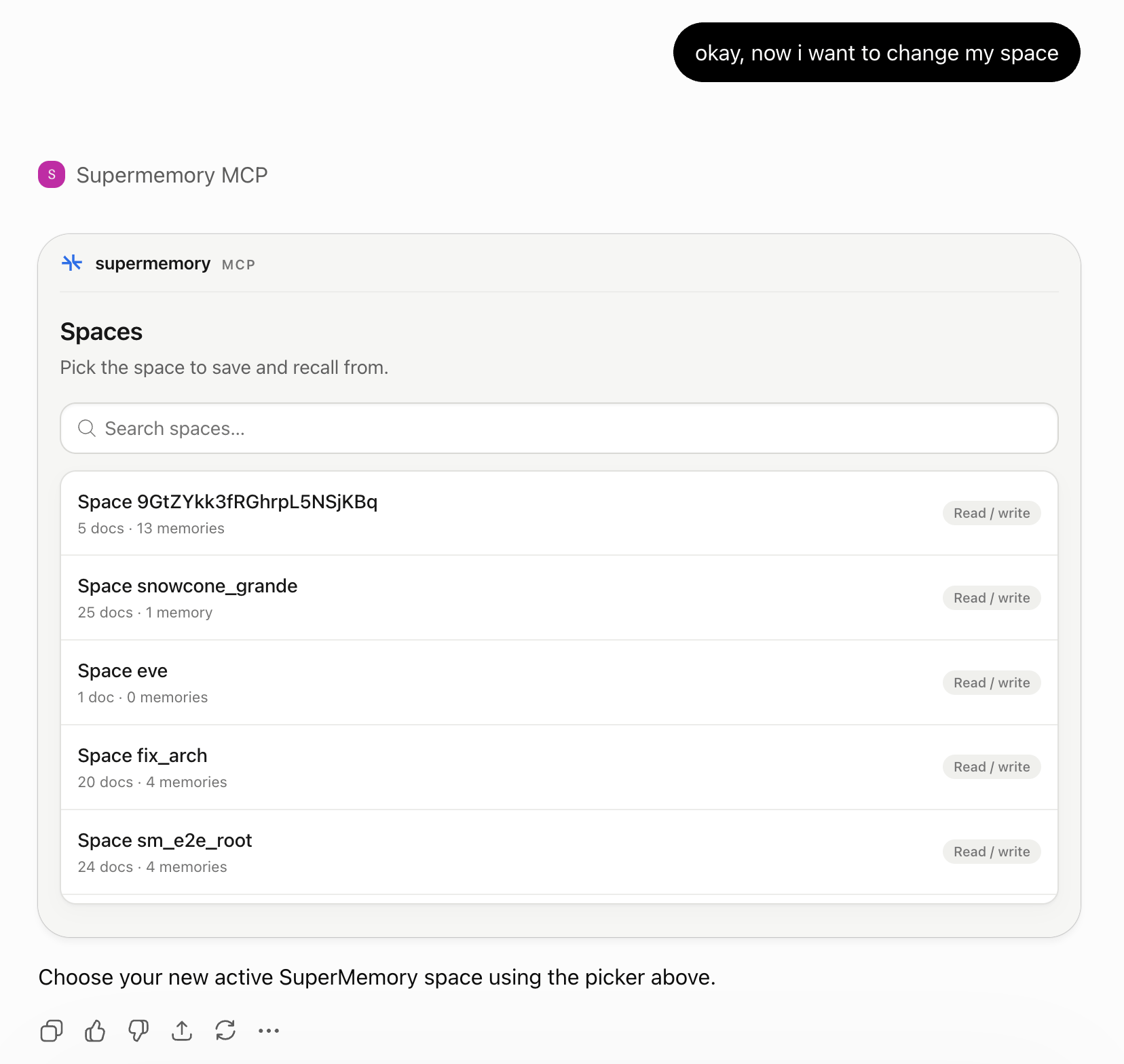
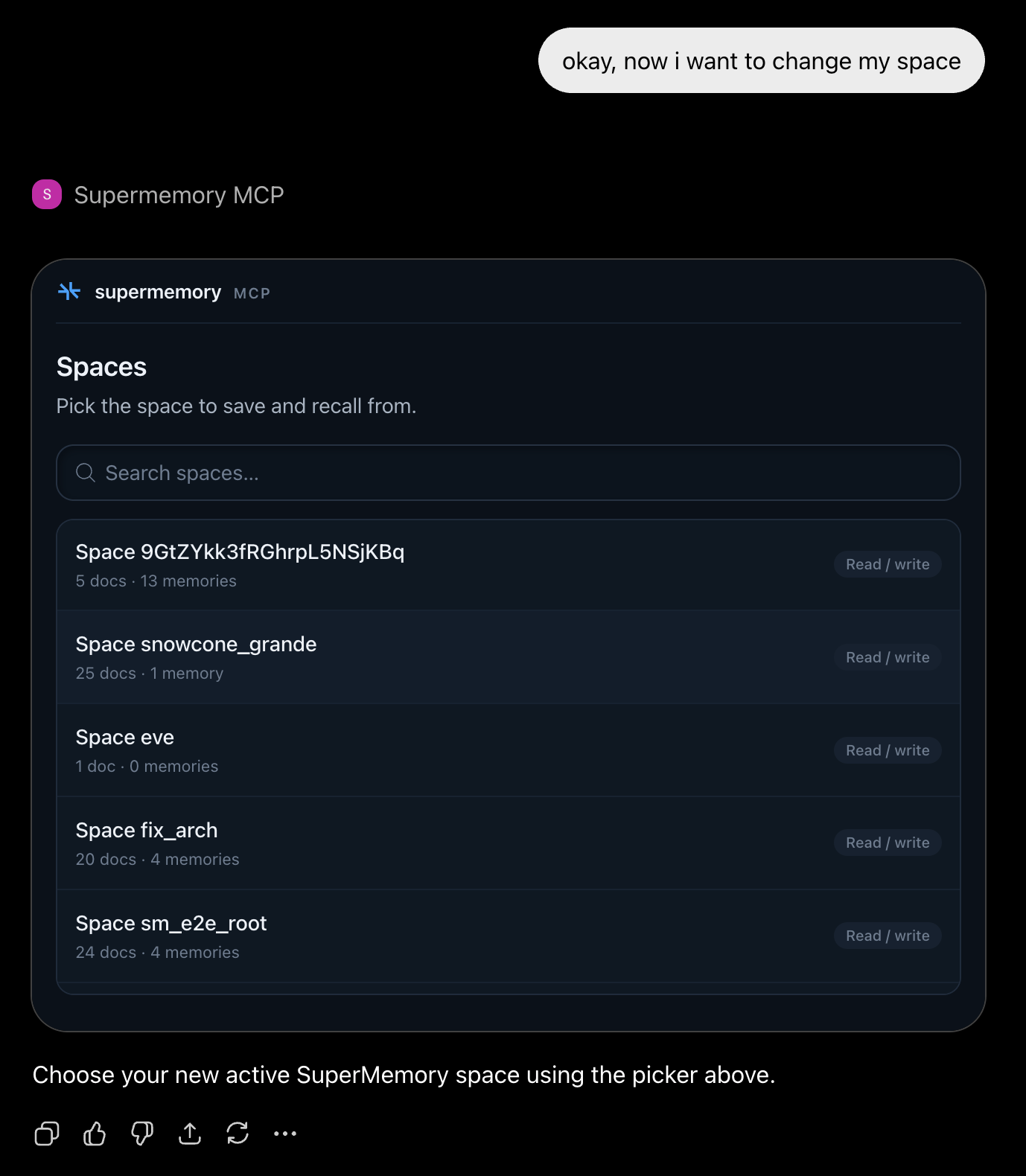
select-space opens a searchable space picker and changes the active space for future Supermemory actions. A one-off request in another space does not change the active space.
Guided save
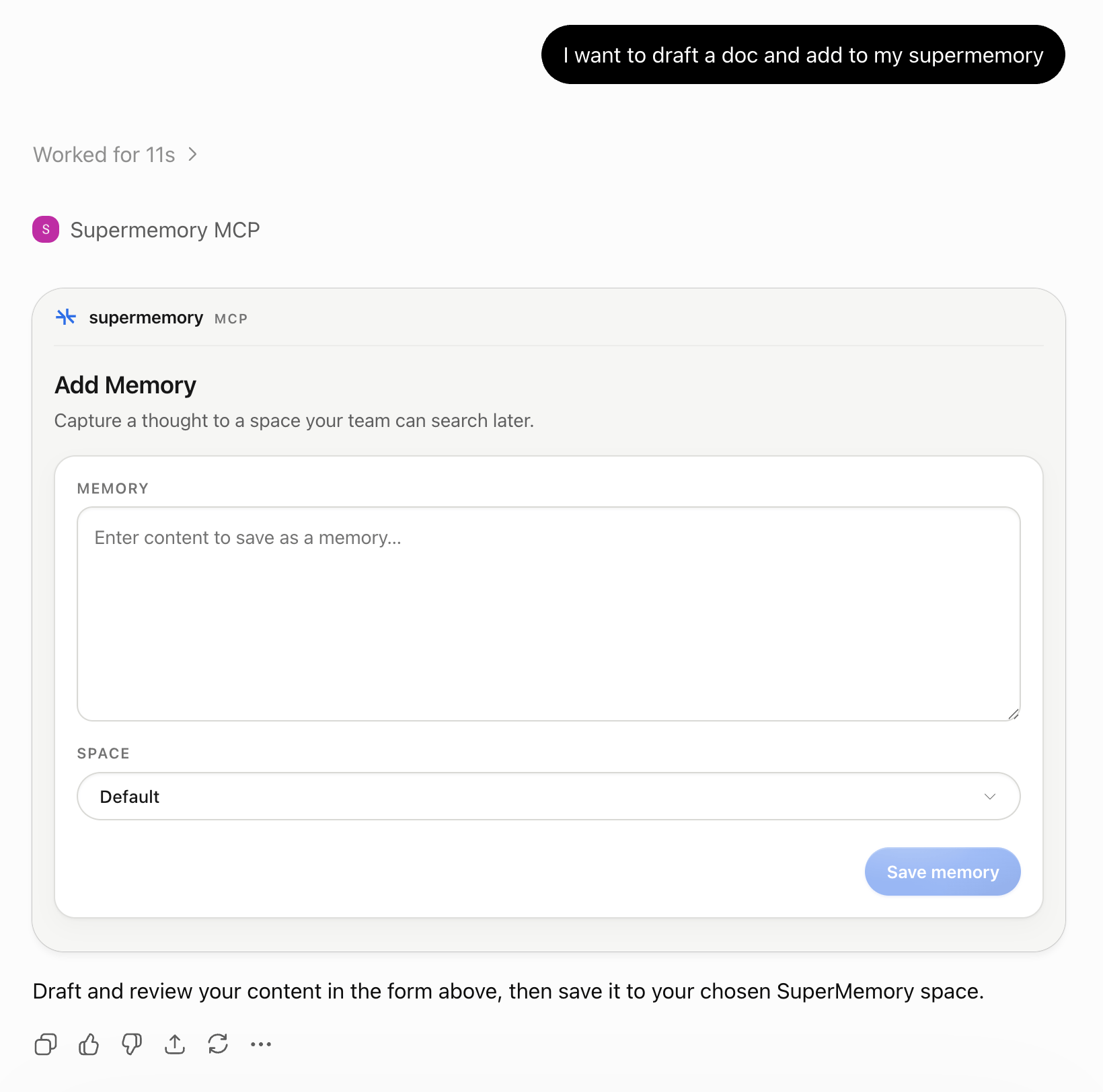
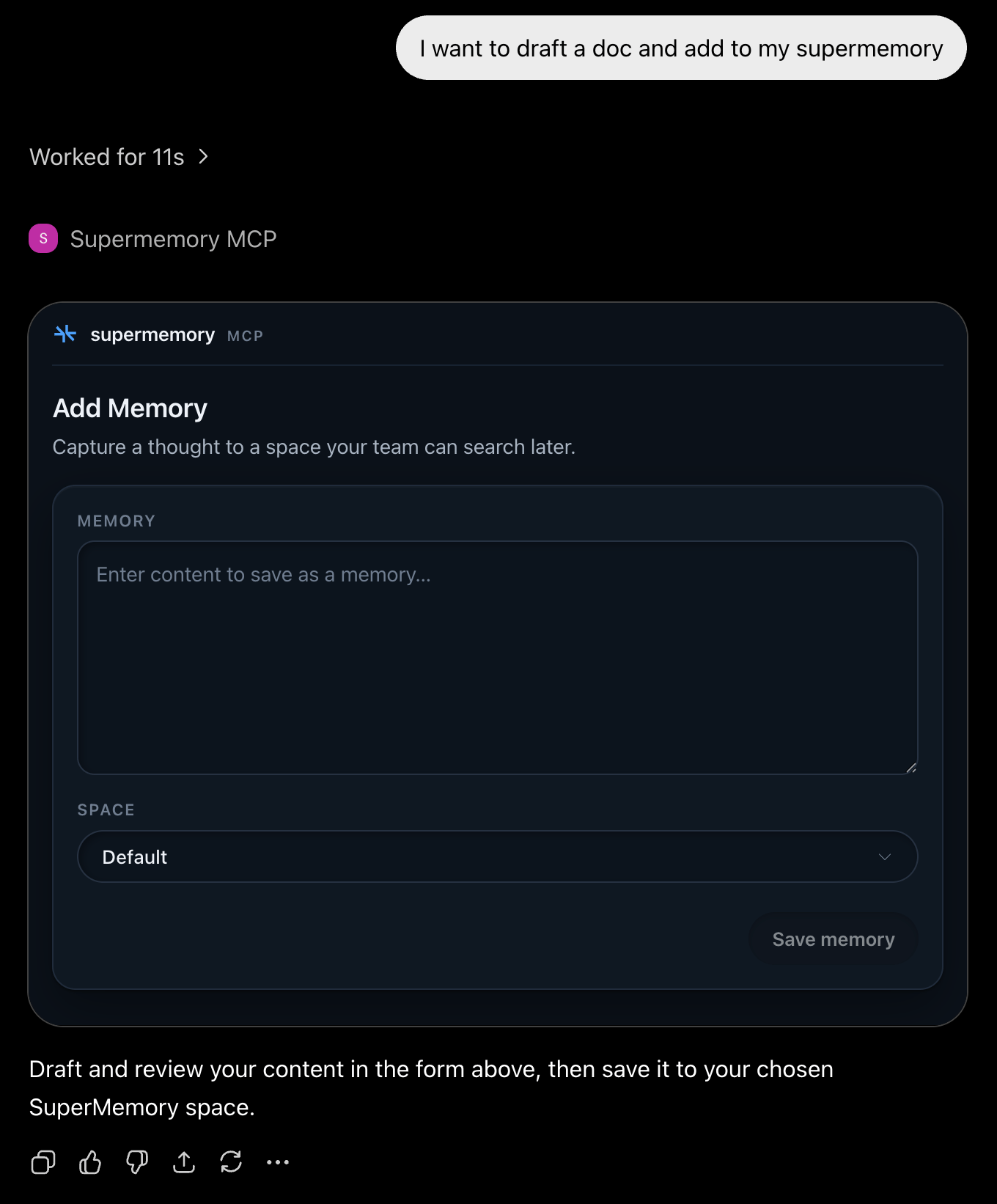
guided-save opens a draft with editable memory content and a writable-space selector. The assistant can prefill the draft, but nothing is saved until you submit it.
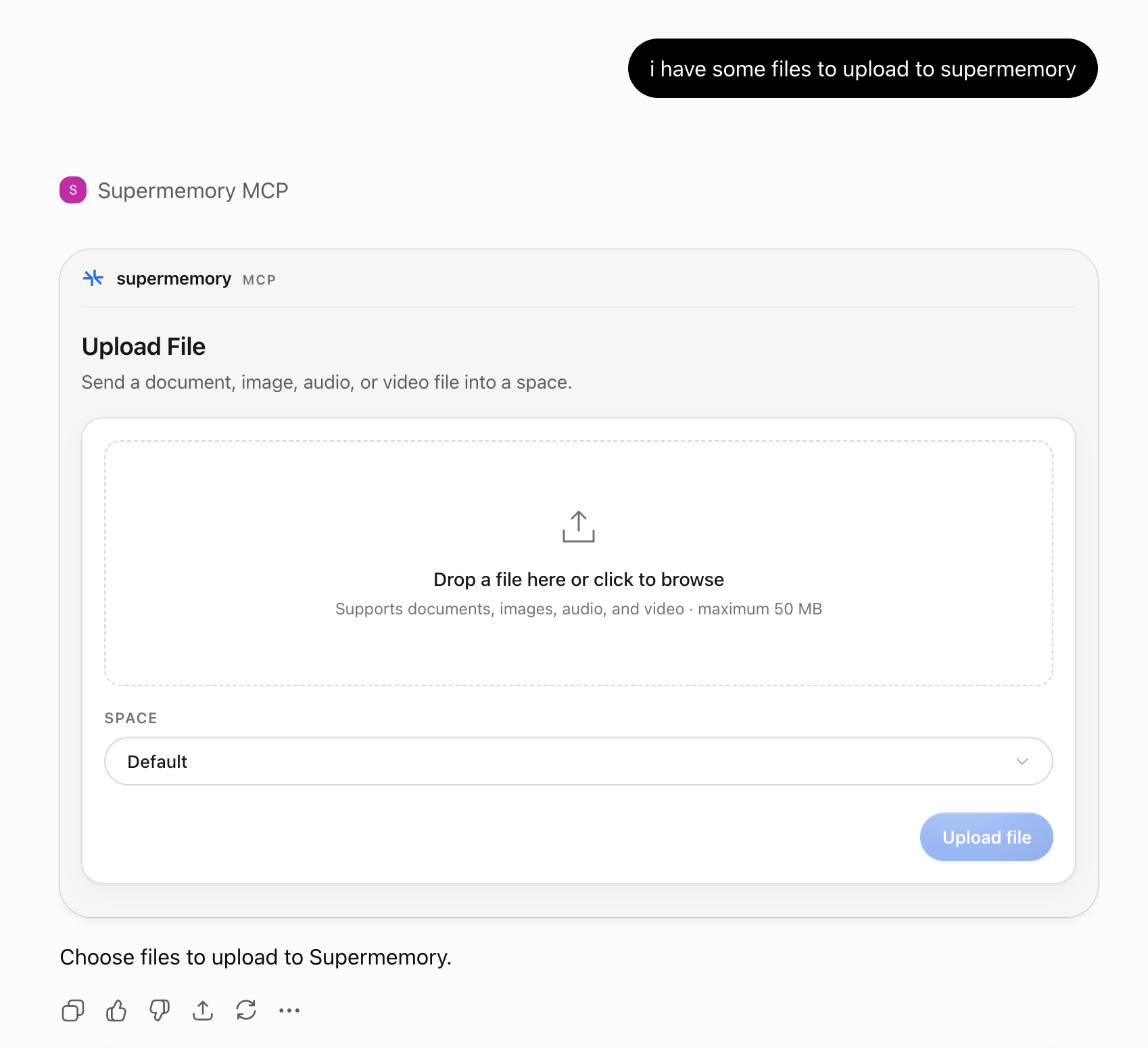
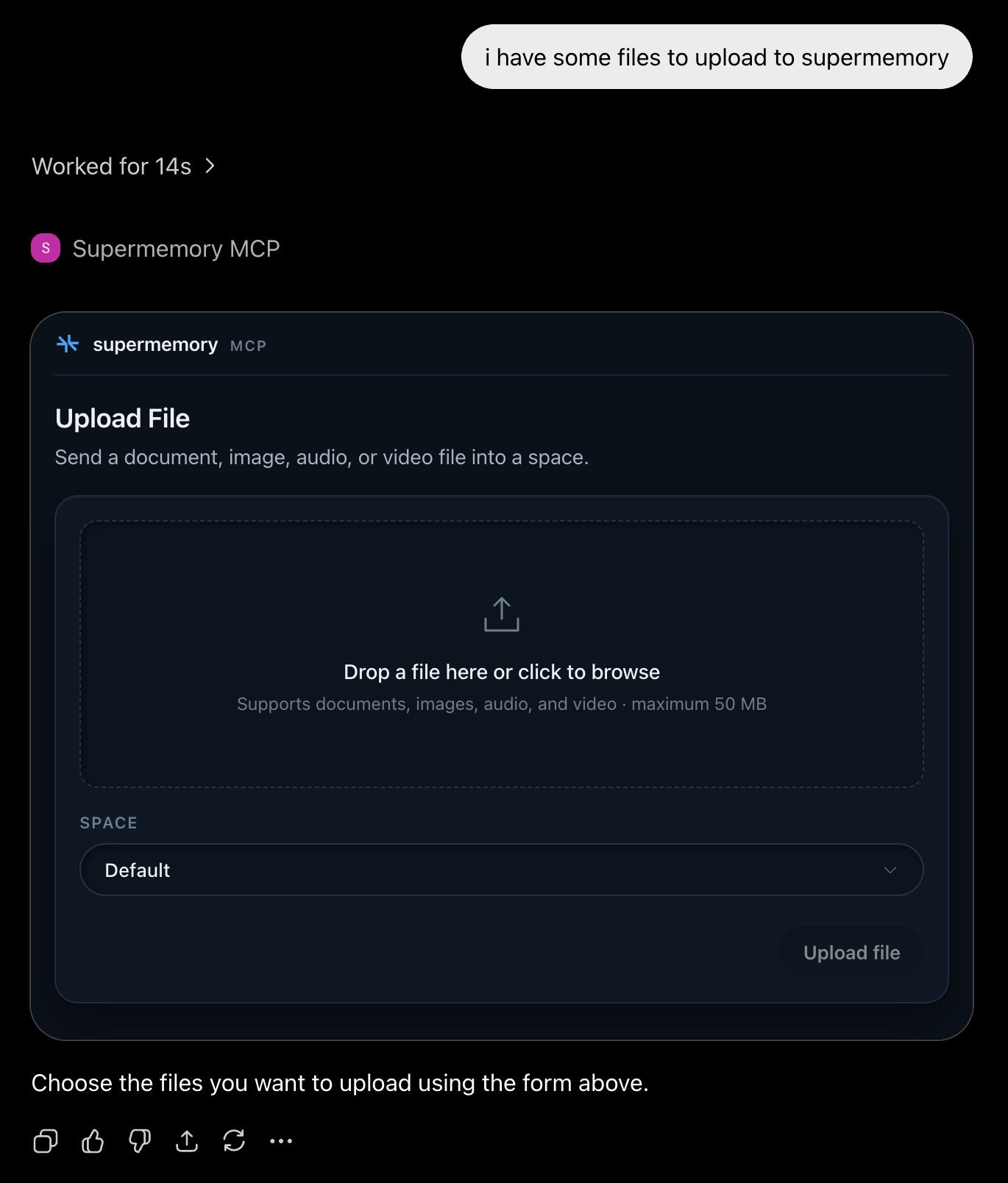
File upload
upload-file opens a local file picker and uploads one file at a time to a writable space.
Supported types include text, Markdown, PDF, Word, CSV, common images, MP3, WAV, M4A, MP4, and WebM.
Memory graph
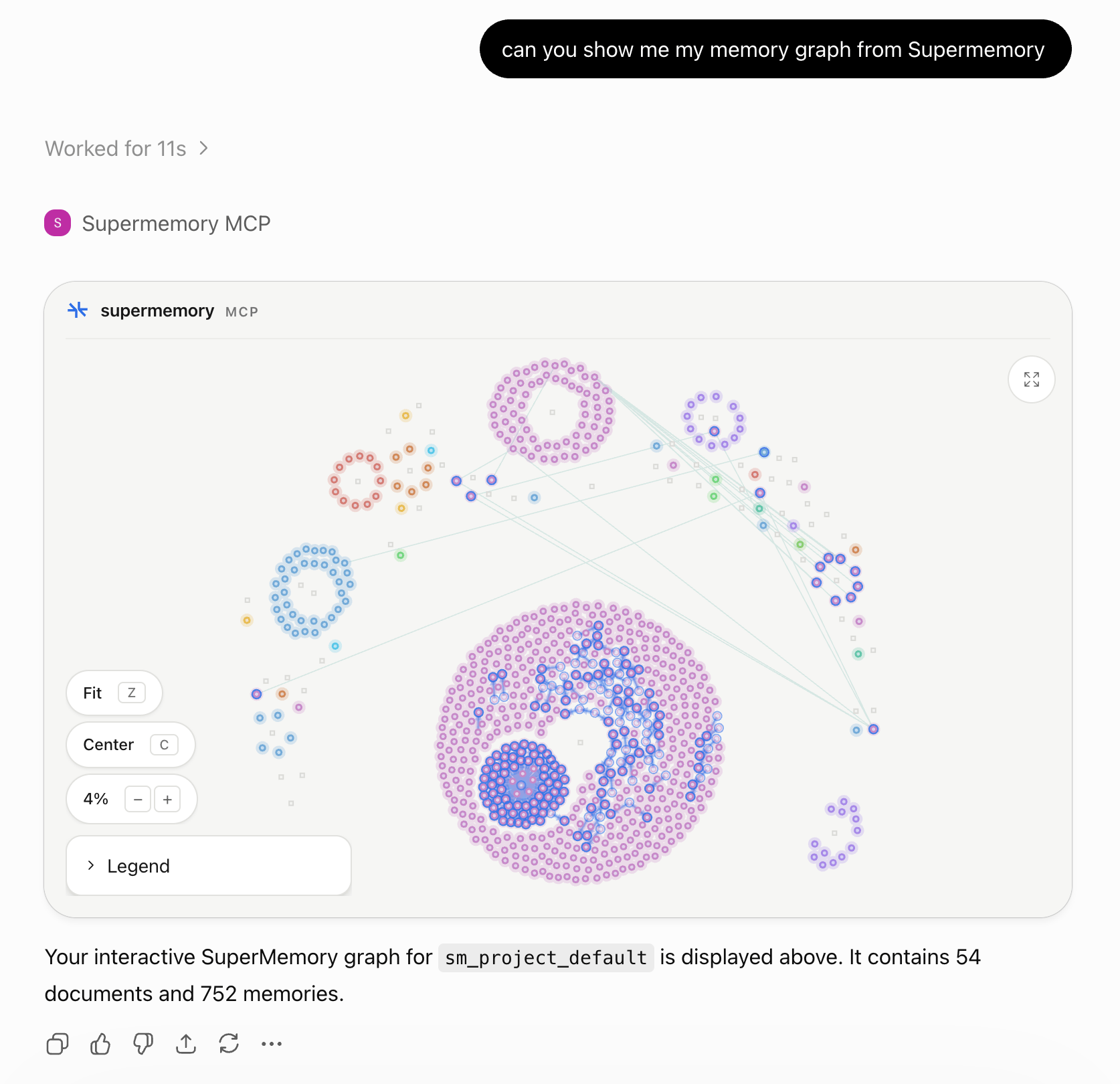
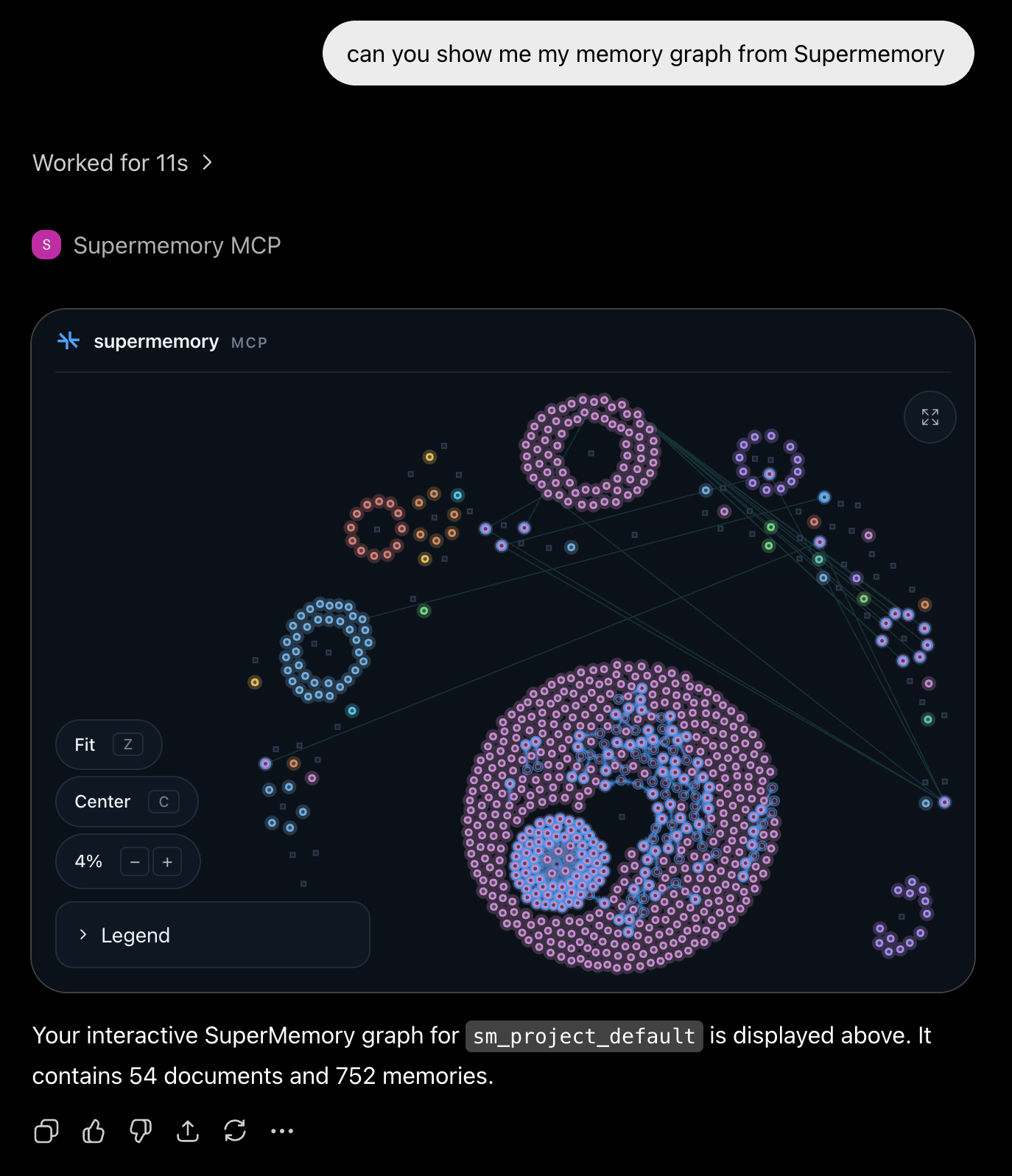
memory-graph renders the selected space as an interactive graph of source documents and extracted memories.
When no space is named, the server automatically uses the active space or account default. If you name a specific space, the assistant calls listSpaces to resolve its name to a space key, then opens that space’s graph.
Resources and context prompt
Some MCP clients also expose resources and prompts:
The
context prompt takes no arguments. It returns profile context for the active space and up to three recently active spaces.
Setup and Usage
Configure Supermemory in supported MCP clients.

Supermemory MCP on GitHub
View the source code.