> ## Documentation Index
> Fetch the complete documentation index at: https://supermemory-personal-brain-docs.mintlify.site/llms.txt
> Use this file to discover all available pages before exploring further.
# Import X Bookmarks into Supermemory and Search Saved Posts
> Learn how to import your X (Twitter) bookmarks into Supermemory and search saved posts alongside the rest of your Personal Brain.
Bring your saved posts on X into your Personal Brain so you can search and reuse them.
## How the X bookmarks import works
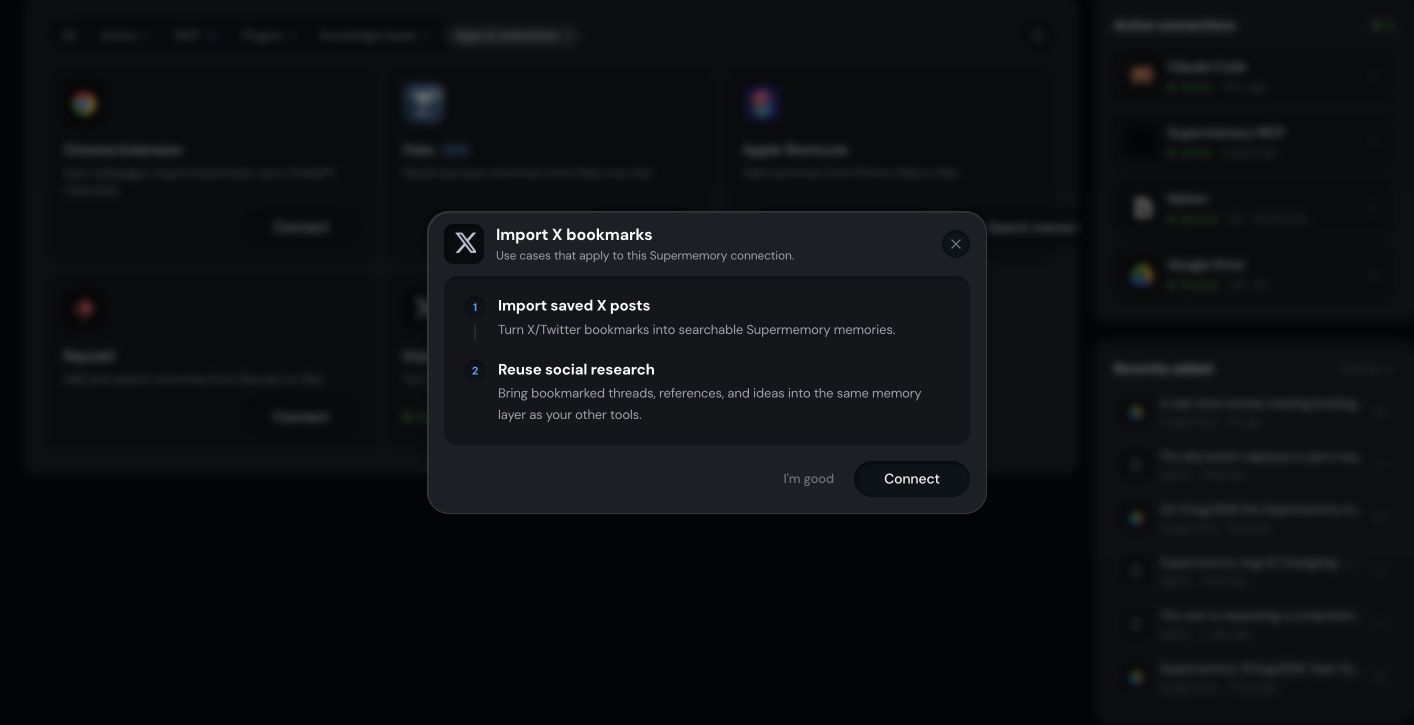
Imports saved X posts into Supermemory as searchable memories, so bookmarked social research is reusable alongside the rest of your memory.
 ## Before you start
* A Supermemory account with Personal Brain access
* Signed in at [app.supermemory.ai](https://app.supermemory.ai)
* Access to your X account
* The active organization and Space you want the bookmarks saved into
## How to import X bookmarks into Supermemory
Go to Integrations and select X bookmarks.
Confirm the active Space where the imported bookmarks should live.
Follow the prompt to connect your X account and begin the import.
Bookmarks are added as memories and finish processing before they're searchable.
## How the X bookmarks integration turns posts into memories
The integration reads your existing X bookmarks and adds each one as a memory in the selected Space. Search picks them up once processing completes.
## What the X bookmarks import saves and searches
* Save: your existing X bookmarks as memories
* Search: those bookmarks alongside everything else in the same Space
## Limitations of the X bookmarks import
* This is an import of existing bookmarks, not a continuous sync unless the product UI explicitly says so.
* Imports land in the Space selected at the start of the import. Move memories between Spaces from Personal Brain if you picked the wrong one.
* Large bookmark libraries take longer to finish processing.
## How to troubleshoot the X bookmarks import
* **Bookmarks didn't appear.** Check the active organization, active Space, and connection status for the X integration.
* **Some bookmarks are missing.** Confirm the import finished and that individual memories finished processing.
* **Search doesn't return a bookmark.** Confirm the Space you're searching matches the Space the import landed in.
## Related
See every way to save and recall from Personal Brain.
Keep different parts of your memory organized and separate.
## Before you start
* A Supermemory account with Personal Brain access
* Signed in at [app.supermemory.ai](https://app.supermemory.ai)
* Access to your X account
* The active organization and Space you want the bookmarks saved into
## How to import X bookmarks into Supermemory
Go to Integrations and select X bookmarks.
Confirm the active Space where the imported bookmarks should live.
Follow the prompt to connect your X account and begin the import.
Bookmarks are added as memories and finish processing before they're searchable.
## How the X bookmarks integration turns posts into memories
The integration reads your existing X bookmarks and adds each one as a memory in the selected Space. Search picks them up once processing completes.
## What the X bookmarks import saves and searches
* Save: your existing X bookmarks as memories
* Search: those bookmarks alongside everything else in the same Space
## Limitations of the X bookmarks import
* This is an import of existing bookmarks, not a continuous sync unless the product UI explicitly says so.
* Imports land in the Space selected at the start of the import. Move memories between Spaces from Personal Brain if you picked the wrong one.
* Large bookmark libraries take longer to finish processing.
## How to troubleshoot the X bookmarks import
* **Bookmarks didn't appear.** Check the active organization, active Space, and connection status for the X integration.
* **Some bookmarks are missing.** Confirm the import finished and that individual memories finished processing.
* **Search doesn't return a bookmark.** Confirm the Space you're searching matches the Space the import landed in.
## Related
See every way to save and recall from Personal Brain.
Keep different parts of your memory organized and separate.