> ## Documentation Index
> Fetch the complete documentation index at: https://supermemory-personal-brain-docs.mintlify.site/llms.txt
> Use this file to discover all available pages before exploring further.
# Supermemory Chrome Extension: Save Webpages, Conversations, and Bookmarks
> Learn how to use the Supermemory Chrome extension to save webpages and AI conversations, import ChatGPT memories and X bookmarks, and organize them in your Personal Brain.
Save webpages and conversations from Chrome without leaving the tab.
## How the Supermemory Chrome extension works
The Supermemory Chrome Extension has two main actions. Use **Save** for the webpage or conversation open in your current tab. Use **Imports** to bring existing ChatGPT memories or X bookmarks into your Personal Brain.
## Before you start
* A Supermemory account with Personal Brain access
* Signed in at [app.supermemory.ai](https://app.supermemory.ai)
* Google Chrome
* The active organization and Space you want to save into
## How to install and connect the Chrome extension
Go to Integrations and select Browser extension.
Add the extension from the Chrome Web Store.
Sign in to Supermemory from the extension so it saves into your account.
Select the Space that matches the context you're saving into before you save anything.
Open a page and use the extension to save it. Check that it appears in the chosen Space.
## Save webpages and conversations to Supermemory
Use **Save** when you want to add something from the tab you are viewing. This works for webpages and supported AI conversations, including ChatGPT and Claude.
Go to the webpage, ChatGPT conversation, or Claude conversation you want to save.
Select the Supermemory icon in the Chrome toolbar and stay on **Save**.
Confirm where you want the page or conversation to be saved.
Select **Add to supermemory**.
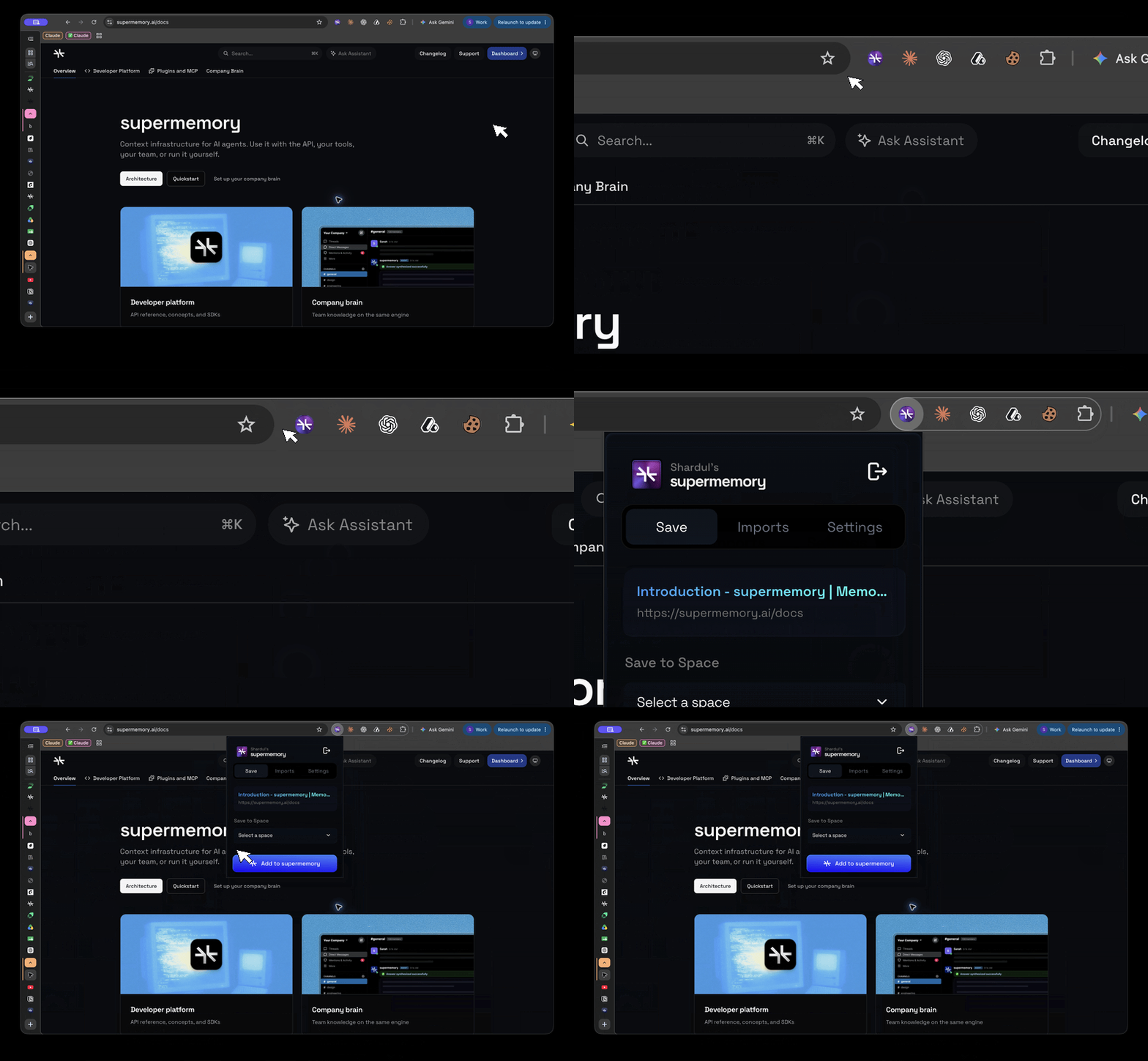 The saved page or conversation becomes available in the selected Space alongside the rest of your Personal Brain.
### What Save captures
* Save: the current webpage and, optionally, a selection or note
* Save: a supported AI conversation using **Add to supermemory**
## Import existing content into Supermemory
Use **Imports** for supported bulk imports. Imports do not depend on the page currently open in your tab.
### How to import ChatGPT memories into Supermemory
Use the extension's import option to bring your existing ChatGPT memories into your Personal Brain. This imports the memories ChatGPT has already saved about you. It is different from saving one ChatGPT conversation.
Select the Supermemory icon in the Chrome toolbar.
Select **Imports** at the top of the extension.
Select the option to import your existing ChatGPT memories.
Follow the instructions shown by the extension and wait for the import to finish.
The saved page or conversation becomes available in the selected Space alongside the rest of your Personal Brain.
### What Save captures
* Save: the current webpage and, optionally, a selection or note
* Save: a supported AI conversation using **Add to supermemory**
## Import existing content into Supermemory
Use **Imports** for supported bulk imports. Imports do not depend on the page currently open in your tab.
### How to import ChatGPT memories into Supermemory
Use the extension's import option to bring your existing ChatGPT memories into your Personal Brain. This imports the memories ChatGPT has already saved about you. It is different from saving one ChatGPT conversation.
Select the Supermemory icon in the Chrome toolbar.
Select **Imports** at the top of the extension.
Select the option to import your existing ChatGPT memories.
Follow the instructions shown by the extension and wait for the import to finish.
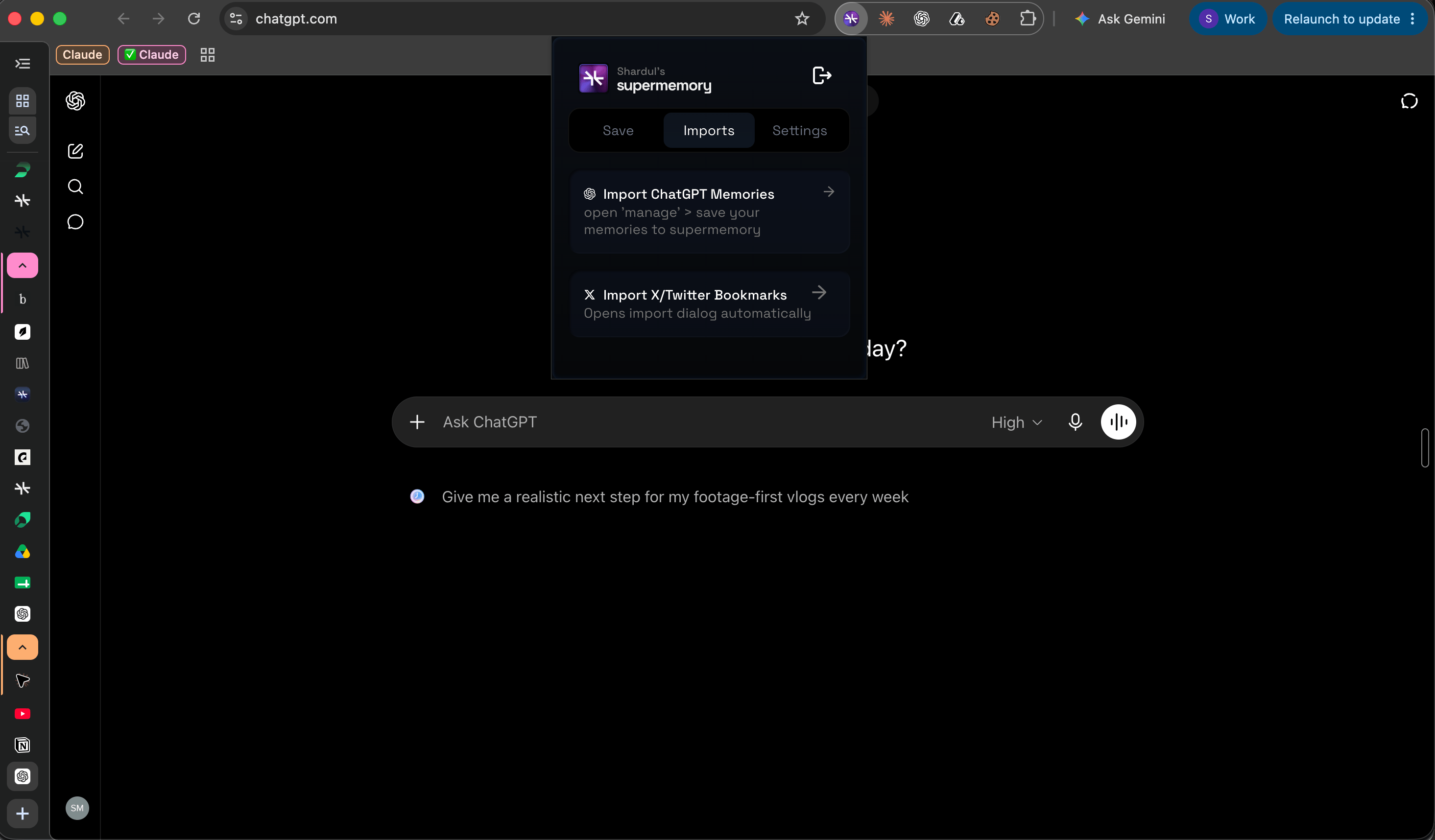 Your imported ChatGPT memories become available in your Personal Brain alongside content saved from webpages, conversations, and other integrations.
### How to import X bookmarks into Supermemory
Use the X bookmark importer to bring your existing saved posts into your Personal Brain.
Select the Supermemory icon in the Chrome toolbar.
Select **Imports** at the top of the extension.
Select the X bookmark import option. The extension opens the import flow automatically.
Follow the instructions shown by the extension and wait for the import to finish.
For more detail, see [How to import X bookmarks into Supermemory](/personal-brain/use-cases/x-bookmarks).
## Limitations of the browser extension
* Chrome is the supported browser. Other browsers are not covered here.
* Saves land in the active Space chosen in the extension. Confirm the Space before saving.
* ChatGPT memory and X bookmark imports are import actions. They are not live syncs.
## How to troubleshoot the Chrome extension
* **A saved page did not appear.** Check the active organization, active Space in the extension, and that the memory finished processing.
* **Sign in loops.** Sign in to Supermemory at [app.supermemory.ai](https://app.supermemory.ai) first, then reopen the extension.
* **ChatGPT memories did not import.** Confirm ChatGPT and Supermemory are signed in through the same Chrome profile, then reopen **Imports** and try again.
* **X bookmarks did not import.** Confirm you're signed in to X in the same Chrome profile, then reopen **Imports** and try again.
* **Add to supermemory did not work.** Confirm you're signed in to Supermemory, the page or conversation is open in the same Chrome profile as the extension, and the correct Space is selected.
## Related
See every way to save and recall from Personal Brain.
Keep different parts of your memory organized and separate.
Your imported ChatGPT memories become available in your Personal Brain alongside content saved from webpages, conversations, and other integrations.
### How to import X bookmarks into Supermemory
Use the X bookmark importer to bring your existing saved posts into your Personal Brain.
Select the Supermemory icon in the Chrome toolbar.
Select **Imports** at the top of the extension.
Select the X bookmark import option. The extension opens the import flow automatically.
Follow the instructions shown by the extension and wait for the import to finish.
For more detail, see [How to import X bookmarks into Supermemory](/personal-brain/use-cases/x-bookmarks).
## Limitations of the browser extension
* Chrome is the supported browser. Other browsers are not covered here.
* Saves land in the active Space chosen in the extension. Confirm the Space before saving.
* ChatGPT memory and X bookmark imports are import actions. They are not live syncs.
## How to troubleshoot the Chrome extension
* **A saved page did not appear.** Check the active organization, active Space in the extension, and that the memory finished processing.
* **Sign in loops.** Sign in to Supermemory at [app.supermemory.ai](https://app.supermemory.ai) first, then reopen the extension.
* **ChatGPT memories did not import.** Confirm ChatGPT and Supermemory are signed in through the same Chrome profile, then reopen **Imports** and try again.
* **X bookmarks did not import.** Confirm you're signed in to X in the same Chrome profile, then reopen **Imports** and try again.
* **Add to supermemory did not work.** Confirm you're signed in to Supermemory, the page or conversation is open in the same Chrome profile as the extension, and the correct Space is selected.
## Related
See every way to save and recall from Personal Brain.
Keep different parts of your memory organized and separate.