> ## Documentation Index
> Fetch the complete documentation index at: https://supermemory-personal-brain-docs.mintlify.site/llms.txt
> Use this file to discover all available pages before exploring further.
# Spaces
> Keep different parts of your memory organized and separate
Spaces let you keep different parts of your memory organized and separate. Save into the Space that matches the context, and search stays scoped to what you actually want back.
## What a Space is
A Space is a named container inside your Personal Brain. Common ways people split them:
* **Personal** for life, notes, and reading
* **Work** for your job in general
* **Research** for a topic you're going deep on
* **A client** you're working with
* **A coding project** you switch in and out of
## What a Space affects
* **Where content is saved** when you add something new
* **The scope of search** when you look something up
* **What a connected tool can see** when it saves or recalls on your behalf
## Create and select a Space
From the Space selector in Personal Brain, create a new Space and give it a name that matches how you'll use it.
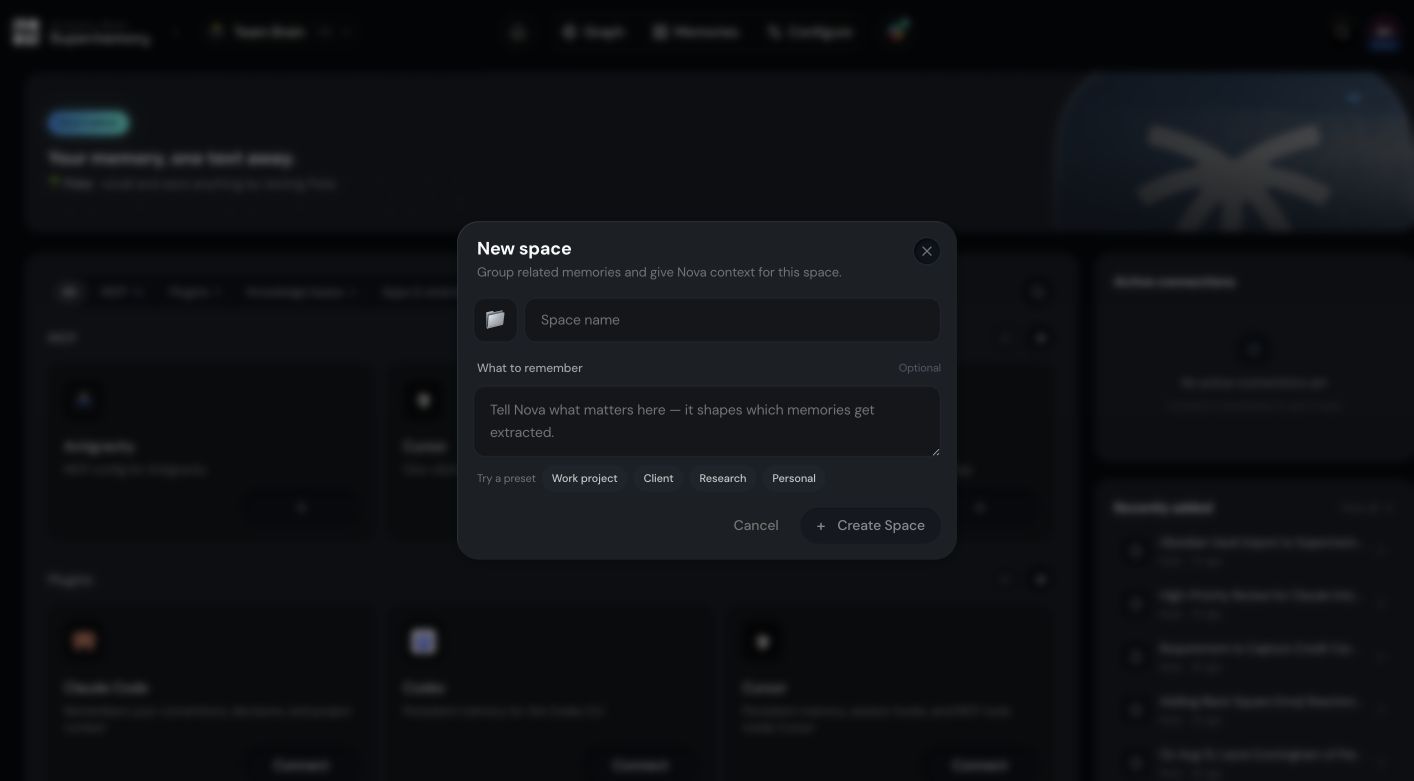
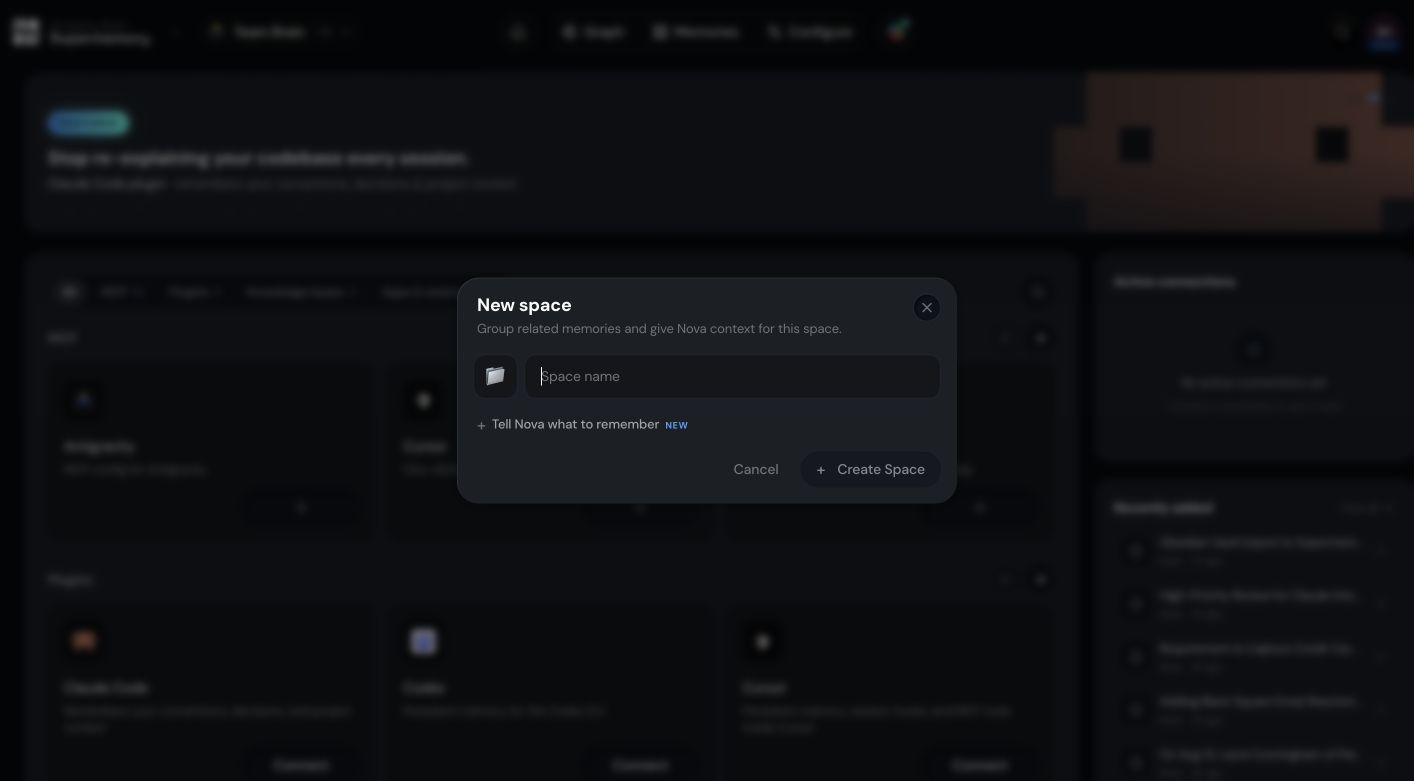 Optionally, tell Nova what matters in this Space so it shapes which memories get extracted.
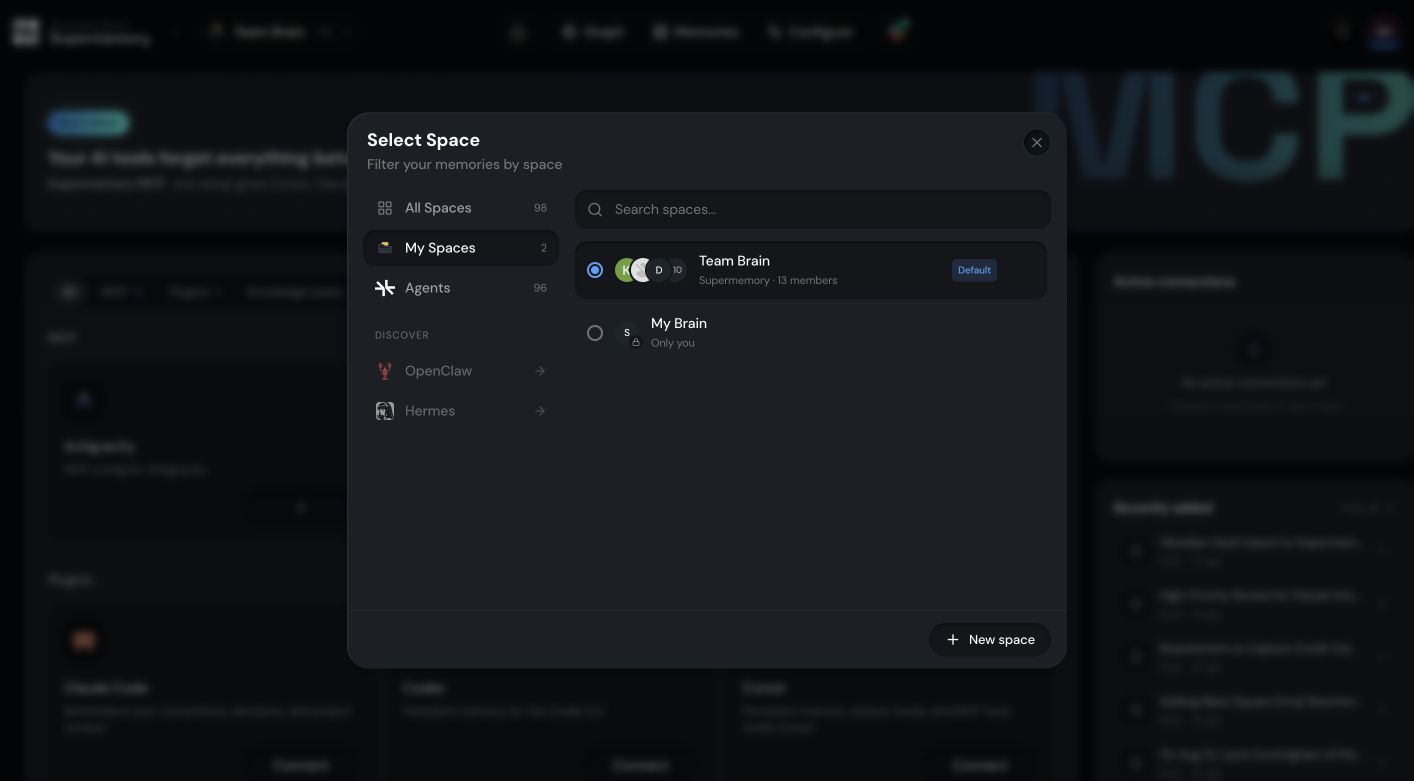
 Switch to the Space you want before you save or search. New content goes into the active Space.
 ## Spaces and Projects
Some coding tools use the word **Project** for a selected memory workspace. When you set up one of those tools, the Project you choose is how that tool refers to the Space it's pointed at.
## Moving, merging, and deleting
When you delete a Space, the app can offer to move its data to another Space before deletion so you don't lose what's inside.
Don't delete a Space until you've confirmed the destination. Once a Space is deleted without moving its data, that content is gone.
## Connected tools
Each connected tool saves and recalls against a specific workspace. When you set up an integration or switch which Space it uses, confirm the selected workspace inside that tool so its saves and searches land where you expect.
## Related
Save your first memory and find it again.
Browse, edit, and organize what's in your Personal Brain.
## Spaces and Projects
Some coding tools use the word **Project** for a selected memory workspace. When you set up one of those tools, the Project you choose is how that tool refers to the Space it's pointed at.
## Moving, merging, and deleting
When you delete a Space, the app can offer to move its data to another Space before deletion so you don't lose what's inside.
Don't delete a Space until you've confirmed the destination. Once a Space is deleted without moving its data, that content is gone.
## Connected tools
Each connected tool saves and recalls against a specific workspace. When you set up an integration or switch which Space it uses, confirm the selected workspace inside that tool so its saves and searches land where you expect.
## Related
Save your first memory and find it again.
Browse, edit, and organize what's in your Personal Brain.