> ## Documentation Index
> Fetch the complete documentation index at: https://supermemory-personal-brain-docs.mintlify.site/llms.txt
> Use this file to discover all available pages before exploring further.
# Setup and Onboarding
> Save your first memory and recall it from Personal Brain
Get Personal Brain running by saving one thing, finding it again, then connecting it to a tool you already use.
## Before you start
* A Supermemory account
* Open [app.supermemory.ai](https://app.supermemory.ai)
* Confirm you're in the intended organization and Space before saving anything
## Steps
Sign in and land in your Personal Brain workspace. Check the organization and Space selector before you save.
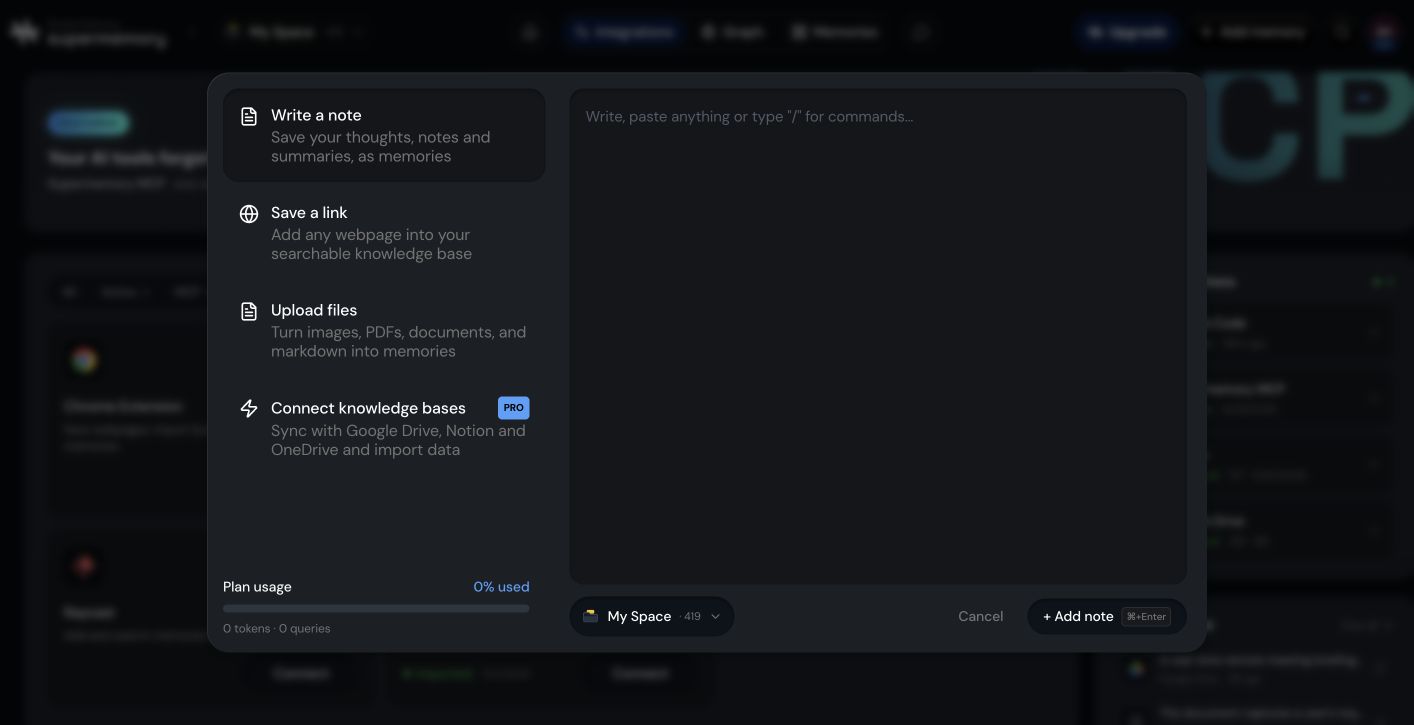
Paste a note, drop a link, or upload a file. Wait for it to finish processing.
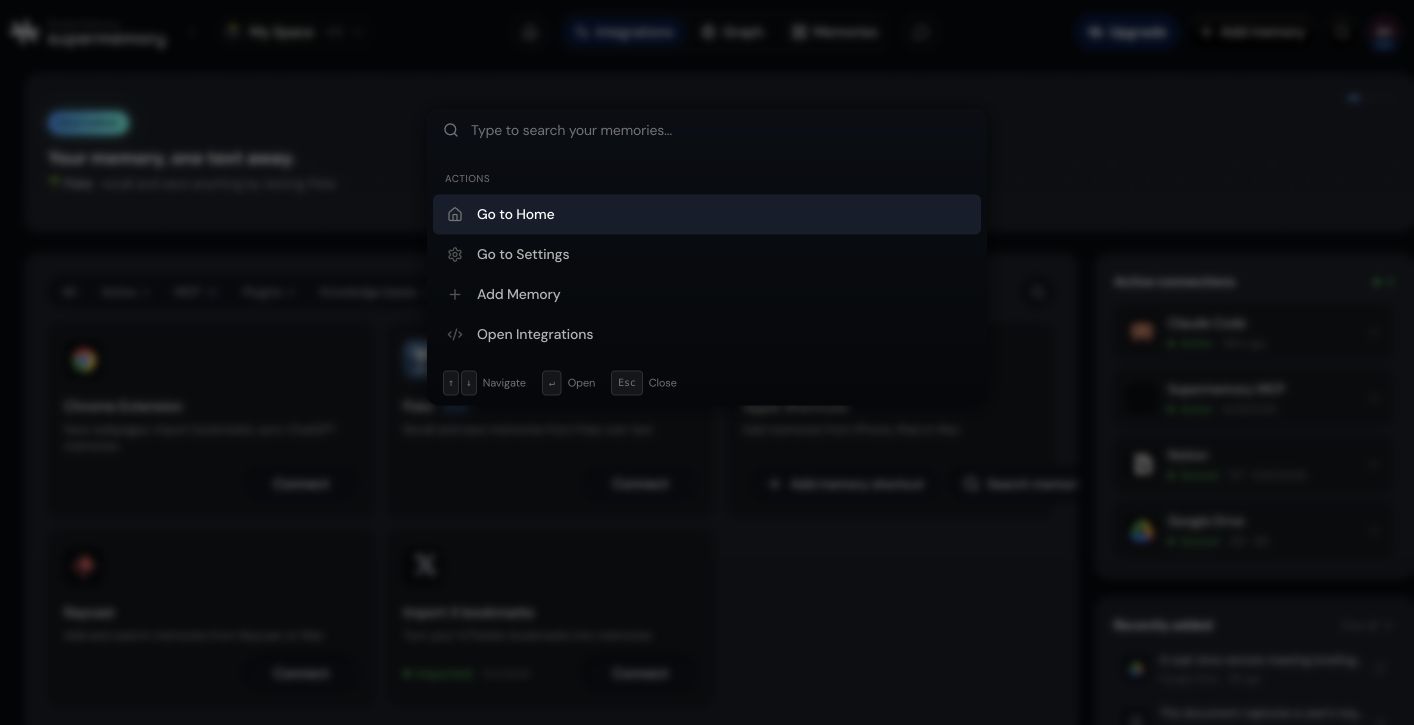
 Search for a distinctive word or phrase from what you saved. Confirm it appears.
 Pick one integration below and set it up so you can save or recall without opening the app.
## Choose your first integration
Save webpages and selections from any tab.
Save and recall by messaging Poke.
Save from Share Sheet, Siri, and automations.
Save and search from your launcher.
**If your memory does not appear**, check three things: the organization you're in, the Space you saved into, and whether the memory has finished processing.
## Related
Keep different parts of your memory organized and separate.
Save and recall your memory from the tools you already use.
Pick one integration below and set it up so you can save or recall without opening the app.
## Choose your first integration
Save webpages and selections from any tab.
Save and recall by messaging Poke.
Save from Share Sheet, Siri, and automations.
Save and search from your launcher.
**If your memory does not appear**, check three things: the organization you're in, the Space you saved into, and whether the memory has finished processing.
## Related
Keep different parts of your memory organized and separate.
Save and recall your memory from the tools you already use.